If you’ve ever picked up a Mini USB flash drive from our warehouse and plugged it into your laptop, only to stare at the “wrong” capacity reading in File Explorer or Disk Utility, you’re not alone. As a Mini USB flash drive supplier, I field this exact question at least a dozen times a week—from casual users confused by a 32GB drive showing 28GB to small business owners wondering why their 64GB drive is only registering 59GB. It’s one of the most common headaches we walk through, and more often than not, it’s rooted in simple, explainable tech—not a defect or scam. Let’s break down the real reasons your Mini USB flash drive might show a different capacity, and what that actually means for you. Mini USB Flash Drive
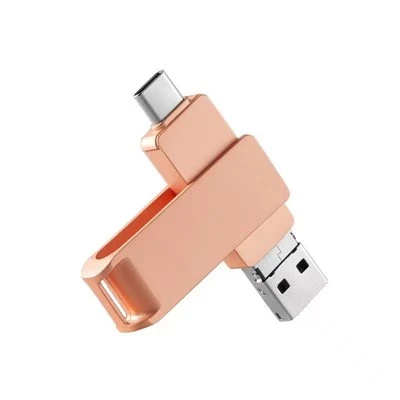
First, I need to pull back the curtain on how flash drive storage is calculated, because the mix of SI units vs. binary units is where half the confusion starts. Most of us learn in middle school that 1 gigabyte equals 1,000 megabytes, right? That’s the metric, or SI, definition set by the International System of Units, and it’s what advertisers and product specs use to market flash drives. But computers don’t work in base 10—they use base 2, where 1 gigabyte (binary) equals 1,024 megabytes. So a 32GB drive marked on the box is 32,000,000,000 bytes when using SI math. Divide that by 1,024 three times to convert to binary gigabytes (what your OS reads), and that number drops to roughly 29.8GB. That’s why every manufacturer’s drive will show roughly 7-10% less capacity than advertised, depending on the size. For a 64GB drive, that gap is about 4.6GB, so you might see ~59.7GB—numbers that add up, but still catch people off guard when they unbox their new Mini USB flash drive. This isn’t a trick; it’s just a unit mismatch, and it’s true for every hard drive, SSD, and flash drive on the planet.
But there’s another layer to this that’s specific to Mini USB flash drives, and it’s where things get a little more nuanced: reserved space for the drive’s firmware and error correction. Unlike an external SSD that might partition a tiny amount of space for system-level tools, Mini USB flash drives pack their entire controller, firmware, and bad-block management code onto a small section of the NAND flash memory. Why? Because Mini USB drives are small, cheap, and don’t have the luxury of dedicated onboard memory or complex controllers that carve out separate partitions for system tasks. That reserved space is necessary to keep the drive reliable. If your drive runs out of space for error correction code (ECC), it’ll start corrupting files mid-transfer, which is way worse than having a little less visible storage. For most budget Mini USB drives, that reserved space is between 2-5% of the total advertised capacity. So adding that to the base unit gap, a 16GB drive might show around 14.5GB total—another quirk that’s easy to mislabel as a wrong capacity, when it’s actually a mix of standard unit conversion and necessary overhead.
Now, sometimes the “wrong” capacity isn’t a small, predictable gap—it’s a massive discrepancy, like a 32GB drive showing only 8GB or 1GB. That’s where the other common culprits come in, and many of them are fixable. The first is a hidden or corrupted partition. If you’ve ever used a Mini USB flash drive for something other than general storage—like making a bootable Windows installer, a Linux live drive, or even a cheap media dongle for a smart TV—you might have split the drive into multiple partitions without realizing it. Your default file explorer only shows one of those partitions, so the rest is “invisible” and the total visible capacity is lower than the full drive. This is super common; I’ve seen customers come to us with drives they used for work projects that suddenly shrank, not realizing they created a second, smaller partition for a bootloader or software installer. Fixing this is usually simple: plug the drive into Windows, open Disk Management (right-click Start > Disk Management), and you’ll see all the partitions on the drive. You can delete the extra partition and extend the main one to use the full space. For Mac users, Disk Utility has a similar “Partition” tab that lets you erase extra partitions in a few clicks.
Another big one, especially with older Mini USB flash drives or ones that have been through a lot of use, is bad blocks. NAND flash memory—what every USB drive is made of—has a limited number of write/erase cycles. Every time you add or delete a file, the drive is wearing out tiny cells of that flash. Over time, some of those cells stop holding data correctly; those are called bad blocks. Manufacturers test drives at the factory and mark any bad blocks they find as unusable, so they don’t show up as part of the drive’s capacity. But as a drive ages and accumulates more writes, new bad blocks pop up. If the drive’s controller isn’t managing them correctly, it might report the old bad blocks plus the new ones as part of the total visible capacity, making the drive seem smaller than it is. For example, a 64GB drive with 8GB of bad blocks would show up as 56GB, which is still close but enough to make someone think it’s broken. A quick check with a dedicated flash drive diagnostic tool—like Flash Memory Toolkit for Windows or F3 for cross-platform—can scan for bad blocks and tell you how much space is actually usable. In some cases, reformatting the drive will force the controller to re-balance the bad blocks and restore a little capacity, though that depends on how many bad blocks there are.
Then there’s the case of counterfeit Mini USB flash drives, which is a real issue in the market, and one that we as reputable suppliers work hard to avoid. I can’t tell you how many times a customer has come to us upset because a $5 “128GB” drive they bought from a no-name online shop only shows 8GB when they plug it in. That’s a counterfeit drive, often made with cheap, fake NAND chips that are flashed to report a higher capacity than they actually have. The controller is programmed to lie to your operating system about the size, so when you try to save files larger than the actual memory, they corrupt or disappear. The only way to spot these is with tools like F3, which will test the drive’s actual write speed and capacity by filling it with test files and checking for corruption. As a Mini USB flash drive supplier, we only work with reputable NAND manufacturers and test every batch of drives before they ship to make sure the capacity matches what’s advertised. Counterfeits are rare in our product line, but they’re a pervasive problem in the industry, so if a deal seems too good to be true for a high-capacity Mini drive, it probably is.
Another less common, but still frequent, cause is file system overhead. When you format a drive, you choose a file system—like FAT32, NTFS, exFAT, or APFS. Each of these has its own overhead, which is the space used to store file names, allocation tables, and other metadata about the files on the drive. For example, FAT32 uses a smaller allocation unit size for smaller drives, so its overhead is roughly 5-10% of total capacity. NTFS and exFAT use slightly more, around 10-15%, so formatting a 64GB drive as exFAT will leave you with less visible space than if you formatted it as FAT32. I always tell customers that for Mini USB flash drives that will be used across multiple operating systems (Windows, Mac, Linux), exFAT is the best balance—it supports large files, has lower overhead than NTFS on small drives, and works on all three OSes. If you’re only using it on Windows, NTFS is fine, but if you need maximum usable space, double-check the file system your drive is formatted with.
So what should you do if your Mini USB flash drive is showing the wrong capacity? First, rule out the simple stuff before panicking. Start with the unit conversion math: do a quick Google search for “binary to gigabyte conversion” and plug in the advertised capacity—most of the time, the visible capacity will match that number almost exactly, minus a tiny bit for firmware overhead. Next, check for extra partitions: open Disk Management on Windows or Disk Utility on Mac to see if there’s unallocated space or extra partitions you didn’t know about. If that doesn’t fix it, run a diagnostic tool to check for bad blocks or fake capacity. And if you recently used the drive for a bootable drive or media project, that’s almost certainly the reason for the smaller size.
At the end of the day, most of the time, a “wrong” capacity isn’t a defect—it’s a combination of industry standards, necessary engineering, and minor user adjustments. That’s why we as a Mini USB flash drive supplier always include a quick troubleshooting guide with every order, and our customer support team is standing by to walk you through any steps if you’re confused. If you’re shopping for a reliable Mini USB flash drive for personal or business use, or if you have more questions about drive capacity, feel free to reach out to our team for a chat. We can help you pick the right drive size, walk you through troubleshooting, and make sure you get the storage you need at a price that makes sense.
Plastic Swivel USB Drives References
- "Flash Memory Basics: How NAND Flash Works for USB Drives." JEDEC Solid State Technology Association, 2022.
- "Capacity Calculations for Digital Storage Devices." International Electrotechnical Commission (IEC), 2019.
- "Bad Block Management in Consumer Flash Storage." Storage Networking Industry Association (SNIA), 2021.
- "File System Overhead and Performance for Removable Media." Microsoft Learn, 2023.
- "Counterfeit USB Flash Drives: Detection and Mitigation." USB Implementers Forum, 2022.
Shenzhen Tanshuo Technology Co., Ltd.
As one of the most professional mini USB flash drive manufacturers in China, we’re featured by high quality customized products. We warmly welcome you to buy cheap mini USB flash drive in stock here from our factory. If you have any enquiry about pricelist and free sample, please feel free to email us.
Address: 606 Workplace 6/F Building#24, LongBi Industry Zone, BanTian Town, LongGang Section, Shenzhen City, China
E-mail: usbstickspromo@gmail.com
WebSite: https://www.fondatop-usb.com/
